

What is WordPress?

WordPress is a Content Management System (CMS).

In simple words, WordPress helps us create websites without writing much code.

Using WordPress, we can easily:

Create pages

Write blog posts

Upload images

Manage content


🔹 Why WordPress is Popular?

WordPress is popular because:

✅ Easy to use

✅ No coding required (basic level)

✅ Free and open-source

✅ Thousands of themes & plugins

✅ SEO friendly


🔹 Types of WordPress

1️⃣ WordPress.com

Hosting is already provided

Limited control

Good for beginners

2️⃣ WordPress.org

Self-hosted

Full control

Used for professional websites

🔹 What Can We Build Using WordPress?

Using WordPress, we can create:

📝 Blog websites

🏢 Business websites

🧑‍💼 Portfolio websites

🛒 E-commerce websites

📰 News websites


🔹 Important WordPress Terms (Easy)

📄 Pages

Used for static content
Example: Home, About, Contact

📝 Posts

Used for blogs and daily content
Example: Articles, News, Tutorials

🎨 Themes

Themes control the design and layout of the website.

Example:

Colors

Fonts

Page layout


🔌 Plugins

Plugins add extra features to WordPress.

Example:

Contact Form

SEO

Security

Page Builders


🔧 Basic Steps to Create Website in WordPress

1️⃣ Install WordPress
2️⃣ Login to admin panel
3️⃣ Choose a theme
4️⃣ Install required plugins

5️⃣ Create pages & posts

6️⃣ Publish website

🔹 Advantages of WordPress

✔ Beginner friendly

✔ Mobile responsive themes

✔ Large community support

✔ Easy updates

✔ Secure with plugins

Conclusion:

WordPress is the best platform for beginners to start web development.
It helps us build professional websites easily and quickly.

Learning WordPress is a great skill for freelancing, internships, and jobs

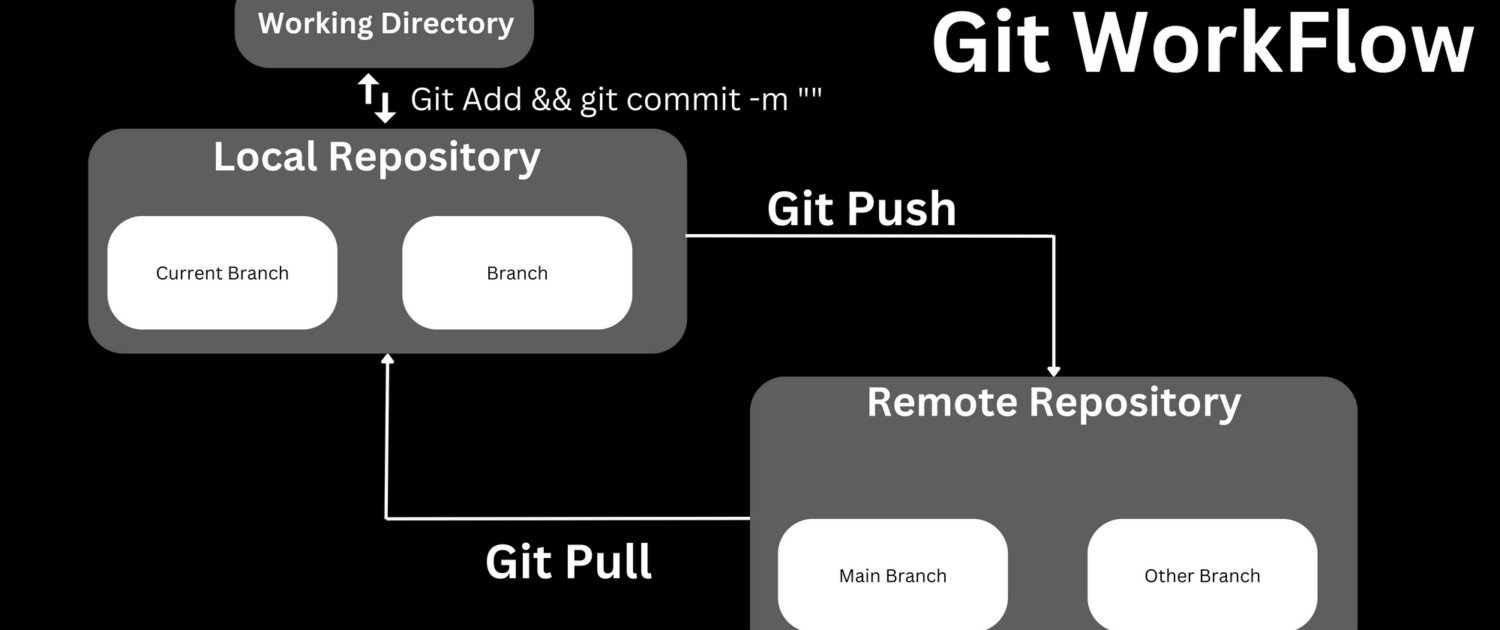
1. Git Basics

🔹 What is Git?

Git is a version control system.
In simple words, Git remembers every change you make in your code.

If:

Your code breaks.

You delete something by mistake.


🔹 Why Git is Important?

Git is important because:

✅ Keeps backup of your code

✅ Tracks who changed what and when

✅ Helps in team work

✅ Saves project history

✅ Used by almost all companies


🔹 What is GitHub?

GitHub is an online platform where we store Git projects on the internet.

In simple words:

Git → works on your computer

GitHub → stores your code online

Using GitHub, you can:

Share code with others

Show your work to companies

Work with team members


🔹 Difference Between Git and GitHub

Works locally Works online
Tracks code changes Stores code
Command-line tool Website
No internet needed Internet required


🔧 Basic Git Workflow (Easy Steps)

1. Create or open project folder

2. Initialize Git

3. Make code changes

4. Save changes (commit)

5. Push code to GitHub


🔑 Common Git Commands (With Simple Meaning)

1️⃣ Initialize Git

git init

👉 Starts Git in your project folder


2️⃣ Check File Status

git status

👉 Shows changed, new, or saved files


3️⃣ Add Files to Staging

git add .

👉 Tells Git: “These files are ready to save”


4️⃣ Save Changes (Commit)

git commit -m “Initial commit”

👉 Saves your changes with a message


5️⃣ Connect GitHub Repository

git remote add origin repository_url

👉 Connects local project to GitHub


6️⃣ Upload Code to GitHub

git push origin main

👉 Sends your code to GitHub


🔁 GitHub Daily Use Commands

git pull → Download latest code

git clone → Copy project from GitHub

git log → View commit history


🧠 Real Life Example

Imagine you are writing a project:

Day 1 → Working code

Day 2 → Code breaks

Day 3 → You panic

With Git: You simply go back to Day 1 code

That’s why Git is very powerful.


Conclusion

Git and GitHub are must-learn tools for every developer.They help us:

Manage code properly

Work in teams

Build professional projects

Learning Git early makes you a better and confident developer 💻


My GitHub URL :-https://github.com/ThakarShivam175


CodeIgniter 4 is a rewrite of the framework. On February 24, 2020, which would be Jim Perry’s birthday, CodeIgniter 4 was launched. Between the launch of the first stable version of CodeIgniter 3 and CodeIgniter 4, it took almost 5 years.

The “lean, mean, and simple” philosophy has been retained, but the implementation has a lot of differences, compared to CodeIgniter 3.

CodeIgniter 4 is very different from 3 and below you will see the main differences between them.

1. PHP versions

  • CodeIgniter 4 required minimum PHP version 7.2
  • CodeIgniter 3 it is possible to use PHP version 5.6 (The developers of PHP are no longer supporting PHP 5.6)

2. Composer

  • CodeIgniter 4 can be download in two ways
    #1 Available as a ready-to-run zip or tarball.
    #2 It can also be installed using Composer
  • CodeIgniter 3 can not be installed using composer

3. Directory Structure

  • CodeIgniter 4 devided into 5 directory /app,/system,/public,/writable,/tests
  • CodeIgniter 3 has 2 directories:/application and /system`

4. Namespaces

  • CodeIgniter 4 is built for PHP7.2+, and everything in the framework is namespaced, except for the helpers.
  • CodeIgniter 3 does not use namespaces.

5. Autoloading

  • CodeIgniter 4 has a autoload process of class, by use of namespaces
  • CodeIgniter 3 has a manual process to configure most of the files to be loaded.

Thank you for reading and Keep visit here for more latest updates on PHP frameworks.

Motto: Client wants to change the layout of single product page of Woocommerce, the challenge is when we upgrade the Woocommerce plugin, it will overwrite all the code files so customization will be removed. So we need to find out the way by which we can customize the Woocommerce & we can upgrade it by just once click from WordPress back end.
Read more

Follow the below 7 steps to create a Test or Demo site on your server.

  1. Create a subdirectory: Create a Subdirectory on your server where you want to create a “Test” site.

    cd /home/domain/public_html/
    mkdir test

  2. Copy all Magento files from public_html directory to the newly created “test” folder

    cp -r /home/domain/public_html/* /home/domain/public_html/test/
    cp /home/domain/public_html/.htaccess /home/domain/public_html/test/

  3. Create a new database for test site: Test environment will use a separate database, So we need to create a database as well. This can be done in the control panel of your hosting account. for ex: test_db
  4. Export the database: Now we need to export the current Magento database. You can use phpmyadmin to export the database or you can use the below command to export the database.

    mysqldump –insert-ignore –single-transaction -u[USERNAME]  -p[PASSWORD] [DB_NAME] | zip > dump.sql.gz

    Notes : You need to replace the SQUARE BRACKETS values with your values.

  5. Import the database: Now we need to import the database which we have export in above step. you can import the database from phpmyadmin IMPORT tab or you can do that with the following command also.

    gunzip < dump.sql.gz | mysql -f -u[USERNAME] -p[PASSWORD] [DB_NAME]

    Notes : You need to replace the SQUARE BRACKETS values with your values.

  6. Change the base_url: You must have to change the base-URL in the Magento database table called “core_config_data”.

    UPDATE core_config_data SET value=”http://www.domain.com/test/” WHERE path=’web/secure/base_url’;
    UPDATE core_config_data SET value=”http://www.domain.com/test/” WHERE path=’web/unsecure/base_url’;

  7. Clear the cache: Last step is to clear the cache. you can do it from the following directory.

    “/home/domain/public_html/test/var/”